
Regime permissions
Select the regime you want to configure and click the Permissions button  in the Home
tab on the ribbon, or
right-click the regime in the hierarchy and select the Permissions option.
in the Home
tab on the ribbon, or
right-click the regime in the hierarchy and select the Permissions option.
The Permissions dialog will be displayed.
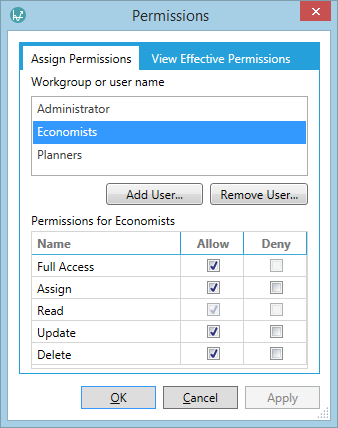
To set permissions for a user or a workgroup, click the Add User button and select the required user or workgroup. Then assign the permission in the table at the bottom of the window by checking the Allow box to allow the user/group to perform the action. The action permissions are described in the table below. If the Deny box is checked, the action is forbidden. If neither box is checked, the effective permission will be inherited from other permissions.
| Permission | Description |
|---|---|
| Full Control | User/workgroup can view, edit and delete the regime, and let other users define its permissions. |
| Assign | User/workgroup can grant any permissions to other users and groups. |
| Read | User/workgroup can view the regime. |
| Update | User/workgroup can edit the regime. |
| Delete | User/workgroup can delete the regime. |
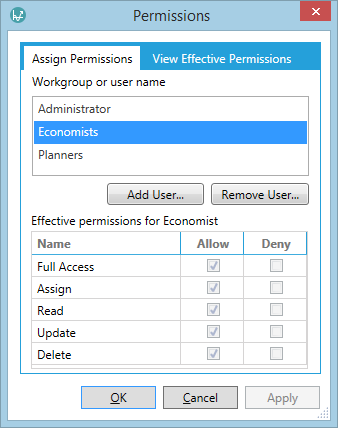
Since permissions depend on workgroups and a user can belong to multiple workgroups, the View Effective Permissions tab shows a summary of the access rights which a particular user has for the selected regime. The image above shows permissions granted to the workgroup called Economists and the image below shows the effective permissions for the user Economist who belongs to that group.
Inherited permissions
Security permissions that are set for folders in the Regime Library explorer are automatically-inherited by new child nodes (folder or Regime) that are added to the folder.
Permissions for folders can be edited and automatically-propagated to child and/or parent nodes (folders or Regimes). This means that individual Regime permissions can be overridden at any time if a user has the appropriate 'Assign' permissions.